

Build a Voting Booth: Ideas for Teaching in a One Tablet Classroom 1
By Tim Wilhelmus
The Idea
One great way to use your Sony Xperia in the classroom is to create a class voting booth. This could be done in conjunction with an election unit or simply to instill a little bit of the democratic process into your classroom.
While the act of voting via clicker or via webtools such as polleverywhere.com may be a quick way to gather class information, the act of reporting to a polling station, waiting one’s turn to cast a ballot, and eventually wrestling with one’s own thoughts to select an option can lend special significance to the process. Use this idea for those times when shining a light on student voice is more important than merely collecting the data.
The How
Begin by creating your electronic ballot. I recommend that you use Google Forms since they integrate so nicely with the Xperia tablet’s Android OS. You will need to create the form online. If you do not already have a Google account, it is simple to create one.
Once you have your Google account, you will be able to create Google Docs, including forms. Creating a Google Form is simple and only takes a few minutes. Some things to consider are:
Selecting an appropriate theme for the ballot form
Making important questions “required”
Editing your confirmation text
Considering what question-type is best
Once you have created the form, you will have a URL or weblink to use to access the form. You will also have a Google Spreadsheet located in your Google Docs that is associated with the form and that will automatically populate as the form is submitted by different users.
I recommend that you email the form link to yourself so that you can quickly access the form via your mail on the Xperia tablet. You can then bookmark the form, using the tablet’s browser. If you would like to always have that bookmark available on your tablet screen, you can create a shortcut to the bookmark as well. Then you can link directly to the form whenever you need. You can find instructions for these actions and more in this documentation.
Another solution is to login to your Google Docs via your tablet’s web browser. From there, you can access the spreadsheet associated with your form, and under the Forms menu, select Go To Live Form. From there, you can create a bookmark as indicated above.
Once you have the live form displayed on the Xperia, you can place it in your voting space. Really, a separate space in the room is adequate, but for that authentic voting booth experience, consider creating a space that includes a curtain or other physical divider for privacy while voting.
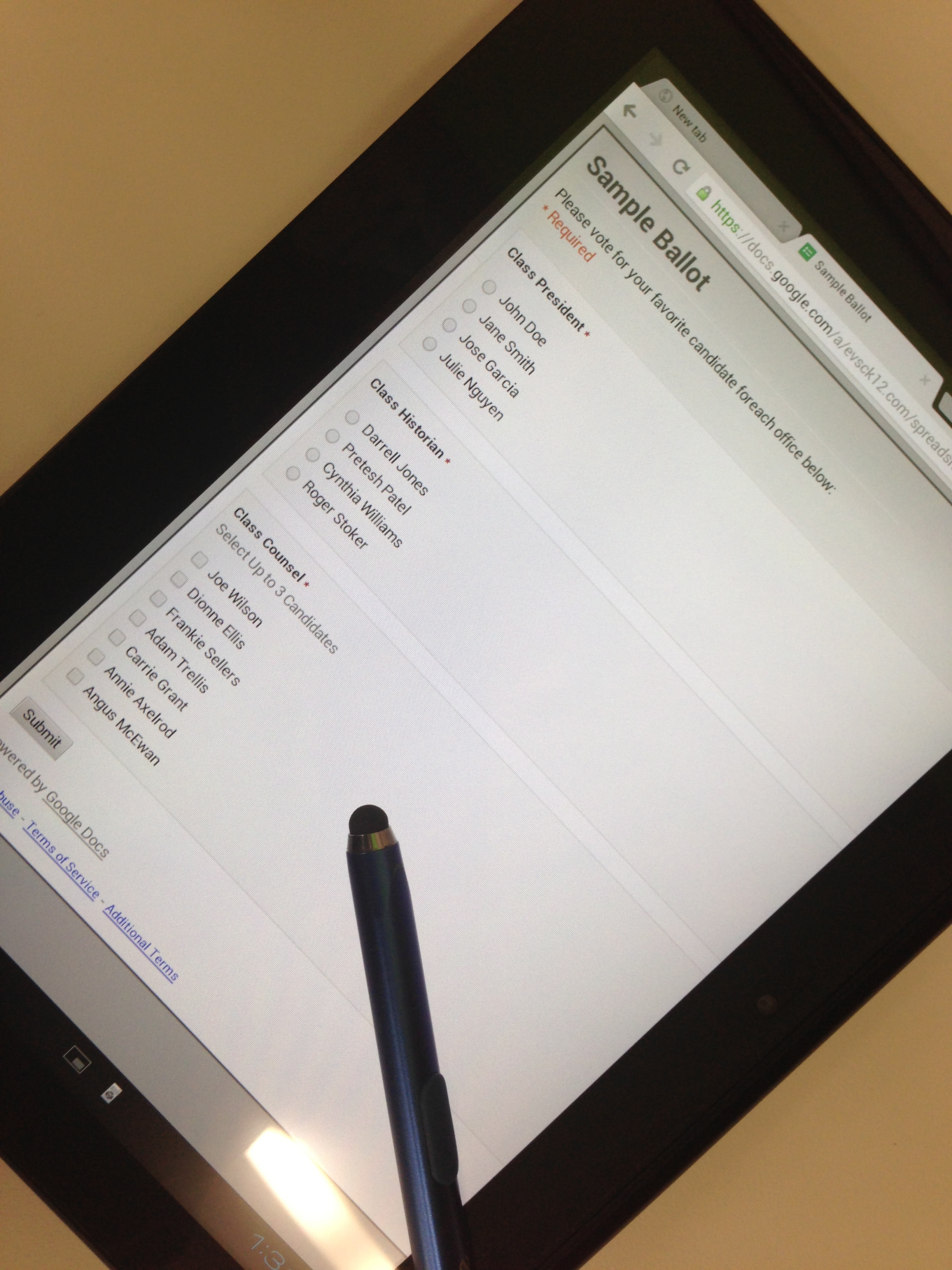 Also, consider providing a magnetic stylus if you have one. This will keep fingerprints from building up on more popular options which might sway future voting.
It also may be helpful to either provide written instructions for how to complete the voting process that includes a reminder to click submit at the bottom of the form and to return to the form for the next user, or to have a student participate as a poll monitor to help guide voters and return to the form for each new voter.
Variations
If you have multiple Xperia Tablets, you can create multiple voting stations to speed up the process of voting.
You could also create voting stations in multiple classrooms to capture the votes of students across a grade-level, school or district.
At events that require voting for something such as best act in a variety show or best display at a science fair, a voting station could be created at the exit of the auditorium or at the end of a gallery walk.
Students could use the Xperia tablets and Google Forms to collect informal data by stationing them in a hallway, cafeteria, etc. and interviewing a random sample of people who pass by for journalism projects, research projects, or to get feedback on issues relevant to the school.
A brief survey could be placed on a tablet located in the school office, and visitors could be invited to fill it out to share their thoughts on a range of issues.
Create a form that can be used throughout the year as a comment box for classroom feedback. Be sure to create a bookmark for your Xperia screen so students can easily get to the form.
Sony's Education Ambassadors volunteer their time and knowledge to Sony in the pursuit of helping educators adapt to new technology in the classroom. Each SEA member was provided a Sony Xperia™ Tablet to evaluate, to help them better understand the device’s features.
About The Author

Tim Wilhelmus
Tim Wilhelmus is an Innovation, Curriculum and Technology Specialist (ICATS) for the Evansville Vanderburgh School Corporation. As a passionate educator over the last 18 years, Tim has taught High School Language Arts and college-level pre-service teaching courses, and is now working with teachers to develop their skills in the classroom. A self-described frenetic change-agent, playground advocate,...
VIEW PROFILERelated Entries


-
"@mrlosik: Coach's Eye is Android Flipping Machine educationambassador.com/resources/entr… #sonyedu @TechSmithEDU" awesome. Gonna use next year for sure :-) Phillip Whitelaw
15 Jun -
 Coach's Eye is Android Flipping Machine educationambassador.com/resources/entr… #sonyedu @TechSmithEDU Andy Losik
15 Jun -
Coach's Eye is Android Flipping Machine educationambassador.com/resources/entr… #sonyedu @TechSmithEDU Andy Losik
15 Jun