

Homescreens & Apps: Android basics out of the box
By Danny Silva // January 24, 2013
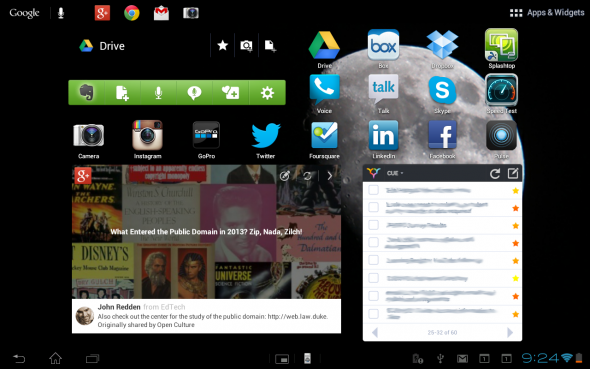
I love homescreens; I am comfortable admitting it. The thing I love most about homescreens is that I can customize them with apps, app folders and widgets. The one thing that can be a plus and minus is that you get five, no more, no less. If you love widgets and you can’t get enough, then having only five homescreens might be a problem. But what I think is great is that I only have five screens to rotate through to get to my favorite stuff. I don’t need to go to the 12th screen to find an app.
So where do all your apps go when you download them? They will go to an open spot on your homescreen first. 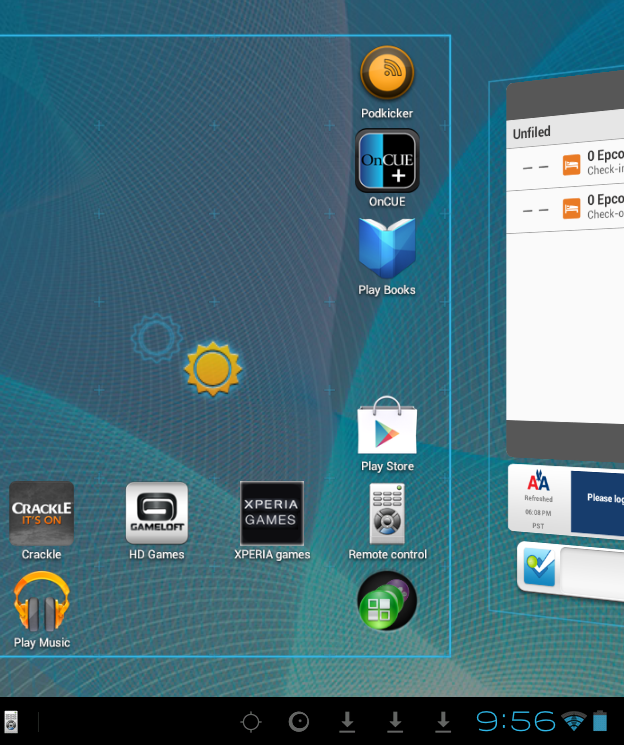 What’s that you say? “You didn’t want that app on that particular homescreen?” In fact you might not even want that app on a homescreen at all. Touch and hold on the app, then you can drag the app to the desired homescreen. If you don’t want the app on the screen just drag it to the top where it says remove.
 When it turns red the app will be removed but not uninstalled.
When you run out of space, then what? That is where your “Apps & Widgets” button at the top right of your screen comes into play. You can touch the “Apps & Widgets” icon to find all your apps that you have downloaded.

Touch and hold the app, then when you start to move it, your homescreens will become available. From the “Apps & Widgets” area you can also move an app to the top, not just to remove it but also to uninstall.
See the next post to start the major customization with Widgets.
Related Videos:
Sony's Education Ambassadors volunteer their time and knowledge to Sony in the pursuit of helping educators adapt to new technology in the classroom. Each SEA member was provided a Sony Xperia™ Tablet to evaluate, to help them better understand the device’s features.
About The Author

Danny Silva
Danny is formally an Agriculture Teacher, Technology Coordinator and Administrator. He is the Professional Development Coordinator for Computer-Using Educators, a Google Certified Teacher, a Google Apps Education Certified Trainer and a Microsoft Innovative Educator. He has led multiple Google Teacher Academies around the world as part of CUE's Lead Learner team and as the Director...
VIEW PROFILE


