

Widgets: Android basics out of the box
By Danny Silva // January 24, 2013
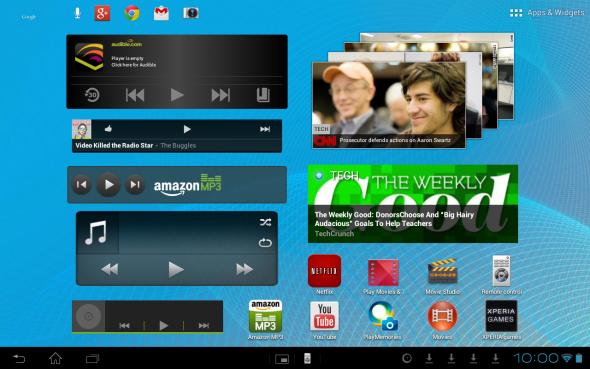
Widgets are just awesome. You heard me mention this before in the post about homescreens. In my opinion widgets are one of the great things that make the Android operating system stand out. Widgets allow you to customize your homescreens with useful information and or functional apps not just shortcuts to an app. Want to see your Google Calendar agenda without launching the app? Just install the widget on one of your homescreens. You will now have access to a scrollable agenda view of your calendars. Click on an event to launch the App right to that event for more detail. Interested? Lets take a look at how to set this all up.

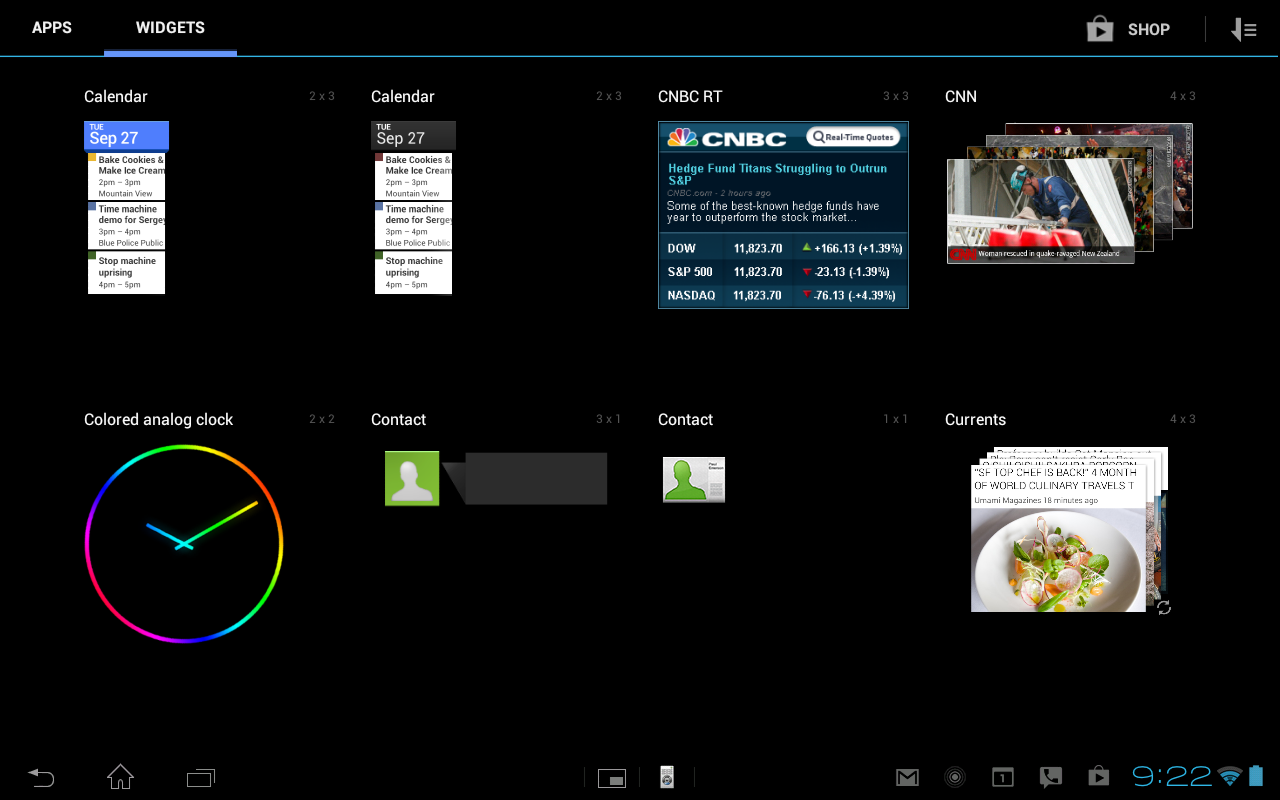
To get started head to the top right of your homescreen and touch on the Apps & Widgets icon. Then touch the widgets tab. Here you will see all the widgets you have available. Widgets that are available have the dimensions next to them (ex. 4x2) this will let you know how much room the widget will take up. Remember, If you do not have enough room on a homescreen, then you will not be able to add it.
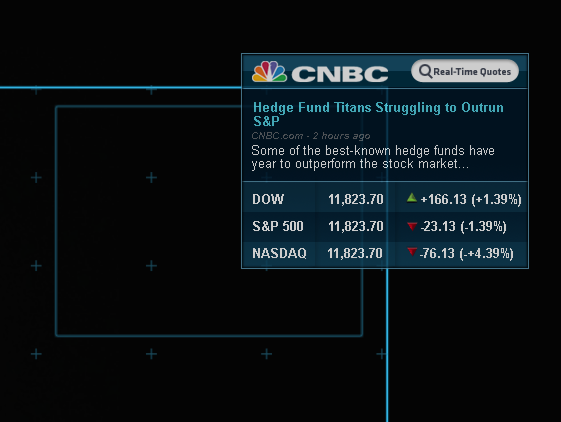 To add the widget to a homescreen, just touch and hold. When the homescreen appears you now will be able to drag the widget to the homescreen and location desired. Some widgets will have a blue box around them, this means they are resizable. Depending on the widget you will be able to resize horizontally, vertically or both.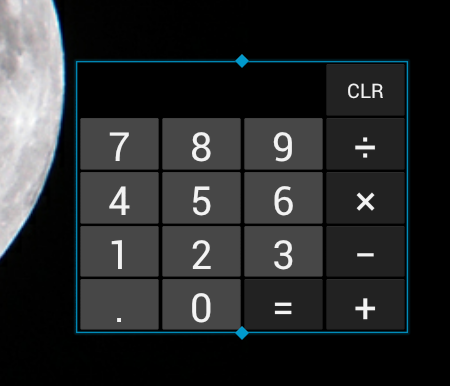
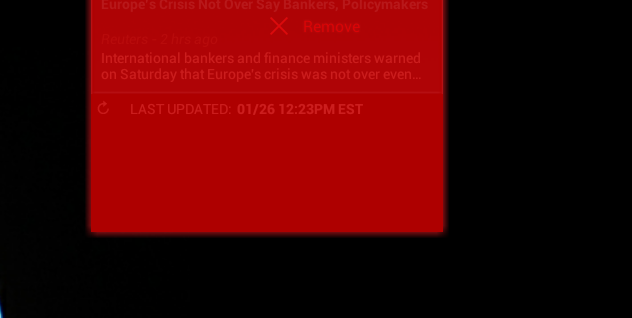
To Remove a widget just touch and hold then drag to the top of the homescreen to where it says “remove”.
One way that some people like to customize their homescreens is by theme or category. Here is how I setup my homescreens from right to left.
-
Media homescreen with audio/video apps and widgets; (See Image at Top)
-
Social Media/Productivity/Cloud homescreen with apps and widgets that help me stay connected to social media, news and all my files (ex. Google Drive, Producteev, Twitter, and Pulse News);
-
My main homescreen is set up with three widgets, Google Calendar widget, HD Widgets - Date, Time, and Weather widget, and HD Widgets - Power Control widget;
-
Personal Interest Homescreen with games and astronomy apps and widgets;
-
Travel homescreen with all of my travel apps and widgets.
Here are some of my favorite widgets:
-
Evernote widget
-
Producteev
-
HD Widgets**
**HD Widgets is a paid app with a bunch of customizable widgets to take your Android homescreen customization to a whole new level.
I hope that all of the Android tablet basics out of the box posts have helped you get a good start with your new tablet or maybe convinced you an Android tablet is the way to go.
Sony's Education Ambassadors volunteer their time and knowledge to Sony in the pursuit of helping educators adapt to new technology in the classroom. Each SEA member was provided a Sony Xperia™ Tablet to evaluate, to help them better understand the device’s features.
About The Author

Danny Silva
Danny is formally an Agriculture Teacher, Technology Coordinator and Administrator. He is the Professional Development Coordinator for Computer-Using Educators, a Google Certified Teacher, a Google Apps Education Certified Trainer and a Microsoft Innovative Educator. He has led multiple Google Teacher Academies around the world as part of CUE's Lead Learner team and as the Director...
VIEW PROFILE


